
VIDEO TUTORIAL BELOW
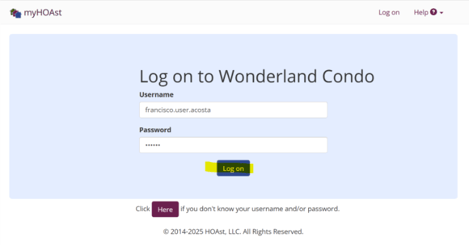
Step 1: Log in to Your HOAst Account
- Enter your username and password, then click Log On.
- If you don’t know the website link, please ask your manager or access it through the voting portal.
- If you don’t remember your login details, use the password reset feature by clicking “here.”
Step 2: Sign the Consent (If not opted in)
- Before you can vote, you must sign the Online Voting Consent Form. This form usually appears automatically when you log in. If not, go to My Account > Online Voting Consent Form.
Step 3: Access the Ballot
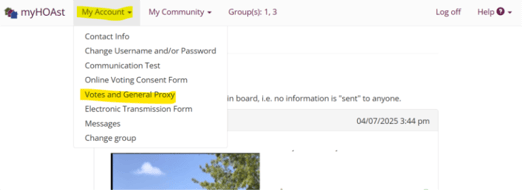
- If you do not automatically land on the voting page, go to My Account > Votes and General Proxy. Click on the “Click Here to Vote” button to access the electronic ballot.
Step 4: Review and Vote
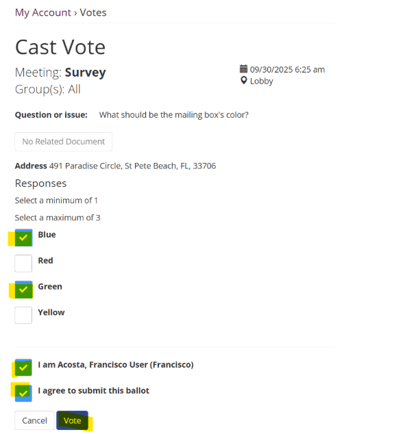
- Review the question(s), any attachments , meeting information, and confirm the unit address linked to your vote.
- Check the box(es) for your response(s).
Step 5: Submit Your Ballot
- Confirm your vote by checking the boxes that state:
- ✅ “I am [your name]”
- ✅ “I agree to submit this ballot”
- Click Vote and then Confirm.
- If there is an additional vote, you will be automatically redirected to the next ballot. If there is no other vote, then you will be redirected to the main page, where it will display ''Vote already submitted''
💡 Reminder: Once submitted, your vote is final and cannot be changed on your own and you will get a confirmation email that your vote was cast. If you wish to change your vote, please contact your property manager or community leadership to assist you.
📧 Need Help?
If you experience any issues or need additional assistance, please contact our support team at: HOAstsupport@cincsystems.com