This guide is specifically designed for users registered to multiple associations under the same email address. If you don't see multiple associations in your account while following this guide, please reach out to ONR Support for assistance.
Let's explore the step-by-step instructions for both methods. First web browser, then the ONR app afterward.
Switching Associations on a Web Browser:
-
Login: Begin by logging into your ONR account using your credentials.
-
Switch Association: Locate the "Add or switch association" button at the top right corner, just below your name and the association's name ⬇️.
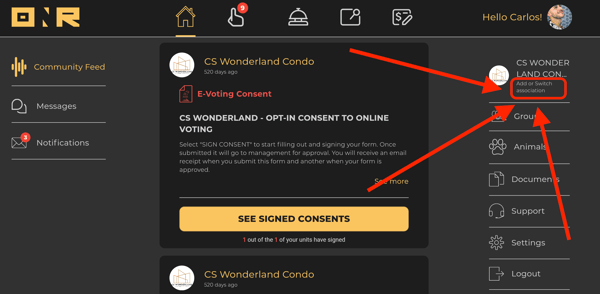
-
Select Association: Now, click on the tile of the association you wish to enter (example shown below).

Switching Associations Using the ONR App:
-
Login: Open the ONR App on your cell phone and log in with your credentials.
-
Locate the Stack Icon: After logging in, look at the bottom right hand corner and click on the Stack Icon (shown below)

-
Switch Association: On this following screen, find your name and the current association's name. Below that, tap "Add or Switch association." (shown below)
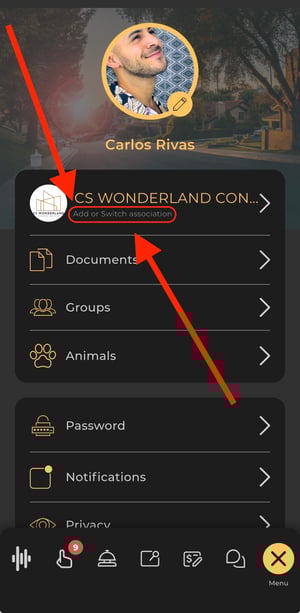
-
Multi-Association Menu: You'll return to the multi-association menu. Tap the tile of the association you wish to enter (shown below)

Switching between associations has never been easier. Whether you're using a web browser or the ONR App, these steps ensure seamless access to your various association environments. If you encounter any issues while following this guide, don't hesitate to contact our ONR Support team for assistance.