
Step-by-Step Guide:
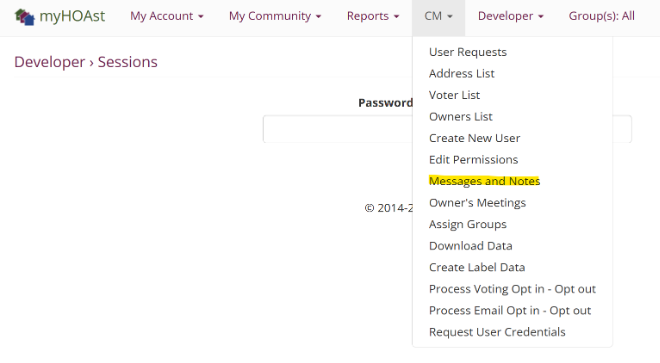
Step 1: Go to the top of your screen and click on “CM”. From the dropdown, select “Email Users/Messages Notes.”
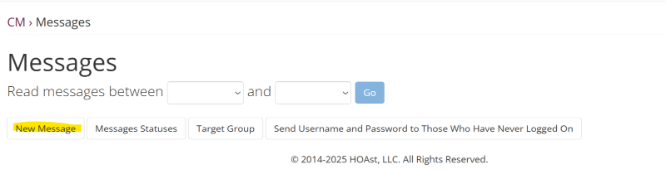
Step 2: Once inside, you’ll see four options.
➡️ Click the first one from left to right called “New Message.”
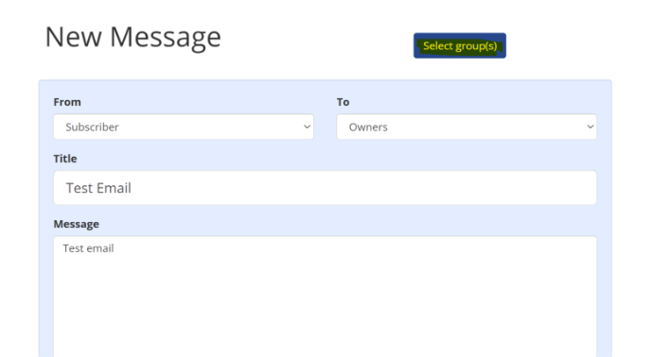
Step 3: Draft your email as you normally would by filling out the fields:
- From
- To
- Title (Subject)
- Message content
⚠️ Don’t forget to click “Add Select Groups.” (Only if Applicable)
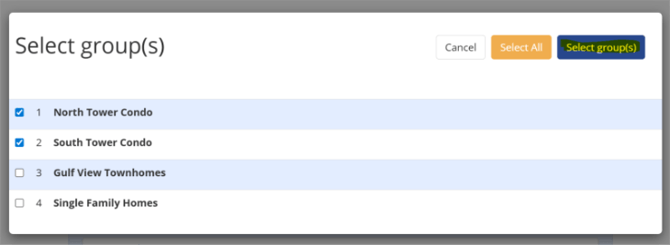
Step 4: In the Select Groups screen, you have two choices: (Only if Applicable)
- Select All → sends the email to everyone.
- Check specific boxes → sends the email only to chosen users/groups.
Once you’ve made your selections, click “Select Groups.”
Step 5: Review your email. When everything looks ready, click “Send.”
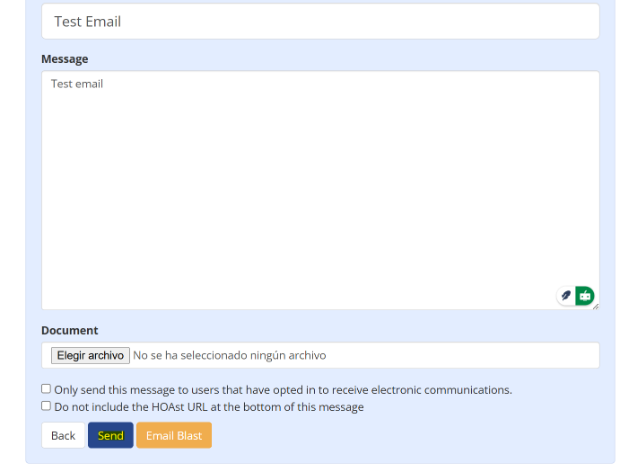
✉️ Reminder: Always double-check your recipients before sending to ensure the message reaches the correct users or groups.
If you encounter any issues or need further assistance, please contact our support team at HOAstSupport@cincsystems.com