Quick Video Tutorial (2 min 37 sec)
Watch the short walkthrough below for a step-by-step demonstration of how to submit an account request.
Prefer Written Instructions?
Follow the step-by-step guide below.
-
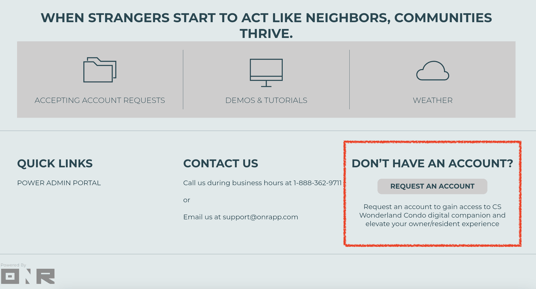
Locate the Request Account Button
From your community landing page, scroll to the lower section of the page and select Request Account.
-
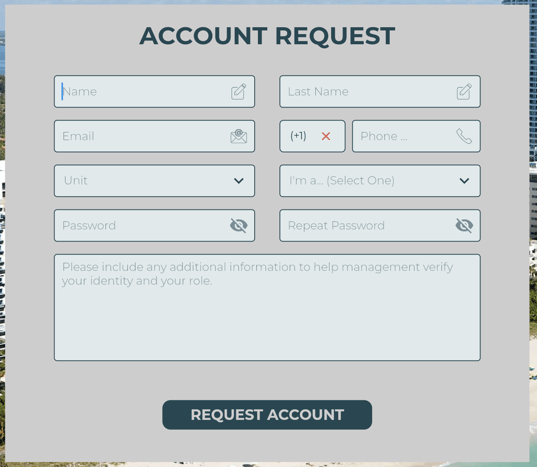
Complete the Account Request Form
Please complete all required fields, including:
- First Name
- Last Name
- Email Address
- Phone Number
- Unit Number
- Profile Type
- Password
- Additional Notes (recommended)
Important:
If requesting access for online voting, select Owner as the profile type.
Note:
Submitting a request does not automatically grant access. All requests must be reviewed and approved by management.
-
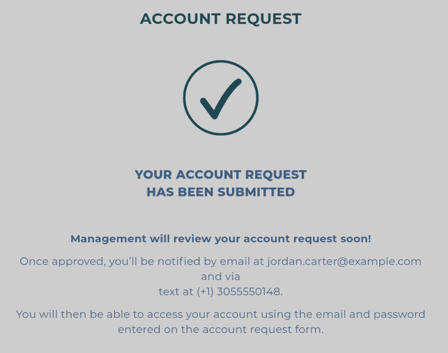
Confirmation of Submission
After submission, you will receive an on-screen confirmation that your request has been received.
Management will review your request and notify you once approved.
Approval Timeframe
Approval times may vary by community management office.
If you need assistance, please contact your management office directly or open a support request with our team
Your account request has been successfully submitted.