
Step-by-Step Guide:
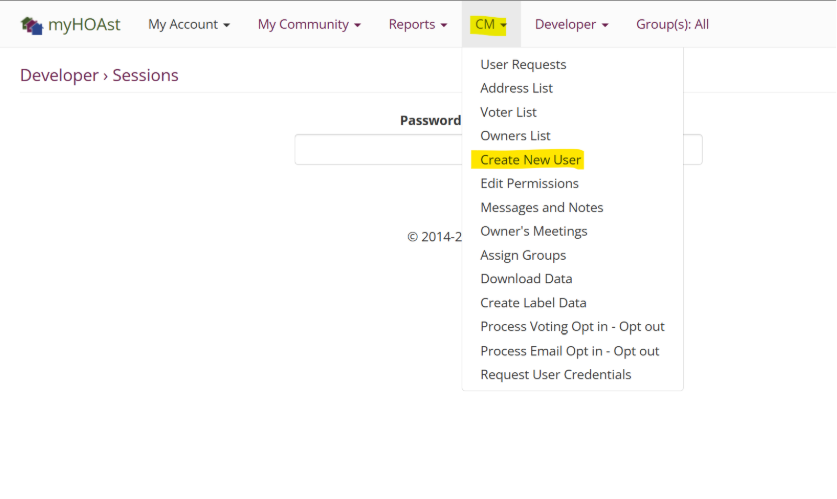
Step 1: Go to CM > Create New User.
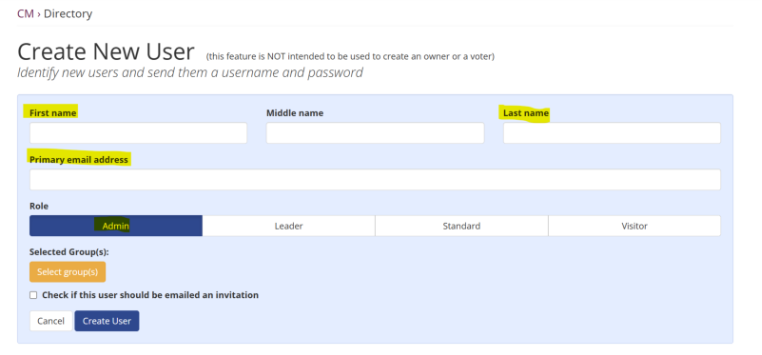
Step 2: Enter the required details for the new user:
- First Name
- Last Name
- Primary Email Address
Step 3: From the Role dropdown, select Admin.
Step 4 (Optional): If your association has the Groups feature enabled:
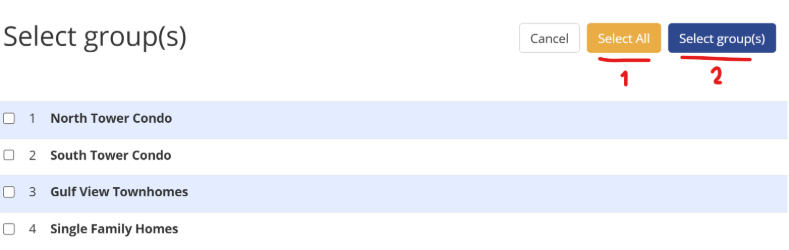
- Click “Selected Group(s):”
- Choose “Select All”
- Then click “Select Groups.”
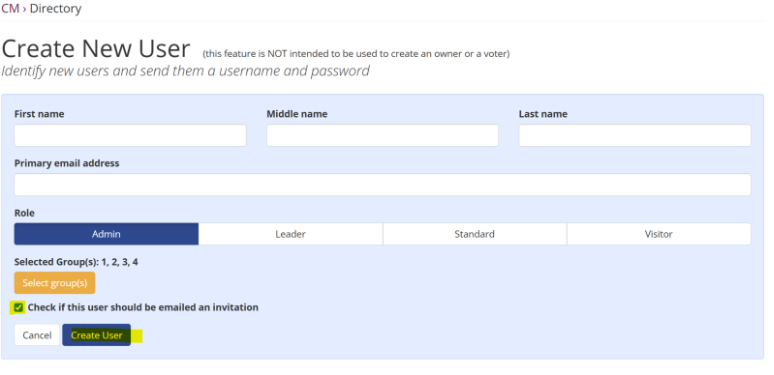
Step 5: Check the box that says “Check if this user should be emailed an invitation.”
Step 6: Once all fields are complete, click Create User.
The new admin will now be added and, if selected, will receive an email invitation.
💡 Need Help?
If you encounter issues or need additional assistance, please contact our support team at: 📧 HOAstsupport@cincsystems.com