
💡 When to use this:
- To change a standard user into an Admin.
- To remove admin permissions from a user.
- To adjust a user’s role or status.
Step-by-Step Guide:
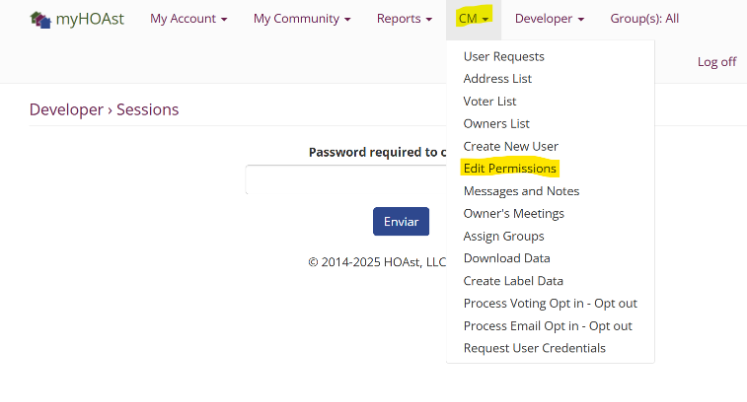
Step 1: Go to CM > Edit Permissions.
Step 2: In the search bar, type the user’s last name to find their account.
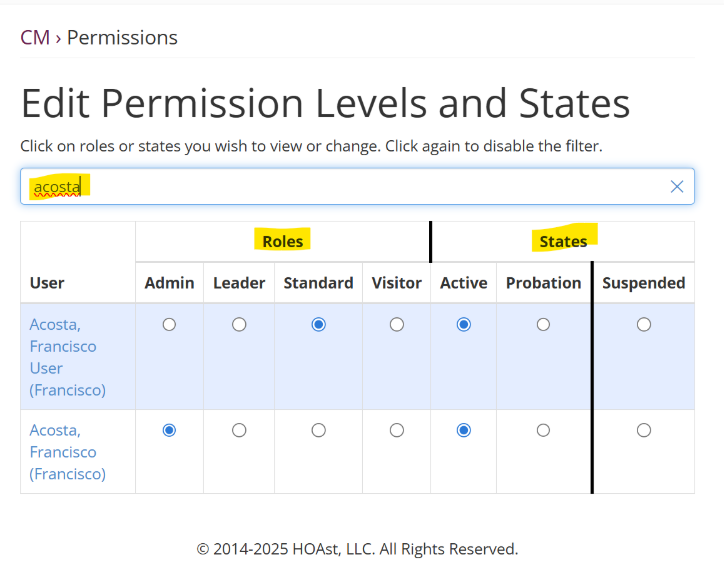
Step 3: Update the user’s settings by selecting the circles for each category:
Roles
- Admin: This user is someone the Subscriber may choose to assist him or her. The Admin, in a sense, has the Subscriber’s power-of-attorney. There is very little the Admin cannot do.
- Leader: This user is one having a leadership role in the community. An example of a Leader is the Board President. Some communities may decide all Board members are Leaders. A user with Leader permissions will make decisions that affect the entire community. For example, they can update the community calendar, revoke a user’s permissions, provide proxies and ballots to owners, and other such tasks.
- Standard: This user is usually one that owns property in the community and/or is a resident in the community. This user does not take a significant part in managing the community but can perform tasks as an owner/voter or resident in the community.
- Visitor: No longer used by any client. This was a way to have some given access to the platform with only the ability to view pages such as Notices, Calendar, and Documents. No ability to do anything else.
State
- Active
- Probation: This user is one that has probably violated some community standard, perhaps multiple times. This user has had their abilities greatly restricted.
- Suspended: This user is one that had their abilities removed. This user can no longer log on.
Step 4: Once you’ve made your selections, you only need to log off and log back in to see the user’s permissions will now be updated.
💡 Need Help?
If you experience any issues or need additional assistance, please contact our support team at:
📧 HOAstsupport@cincsystems.com